













Yes. Beginners can improve FPS on Linux by using Proton, GameMode, MangoHud, and simple system tweaks. The biggest gains usually come from the right compatibility settings, updated graphics support, and fewer background tasks.
Start With Proton and Game Compatibility
Proton is Valve’s compatibility tool for Steam Play. It lets many Windows games run on Linux through Wine and related components. That makes it one of the first things to check before changing deeper system settings. Steam also states that SteamOS is Linux based and that the vast majority of the Steam library runs on it thanks to Proton.
For beginners, the best habit is simple. Check whether a game is known to work well before you spend time tuning the whole system. ProtonDB exists for exactly that purpose. It collects player reports and gives aggregate scores for how well games perform with Proton on Linux. That helps you avoid blind guessing and saves time when a game needs a specific Proton version or small workaround.
A practical approach is to start with the default Steam Proton option first. If a game has trouble launching, stutters badly, or shows broken graphics, then compare your result with ProtonDB reports. That is the most efficient first step for PBLinuxGaming beginners because it fixes compatibility problems before you start chasing FPS settings that may not be the real cause.
If you want to understand release timelines and early access patterns in modern games, check this guide on When Was the Game Innerlifthunt Released?
Turn On GameMode for Active Performance Boosts
GameMode is a daemon and library for Linux that lets games request temporary system optimizations while they are running. Feral Interactive says it was designed in part as a response to CPU power-saving governors, and it now includes several optimization features. This makes it useful when you want better game performance without changing your system permanently.
For beginners, the value of GameMode is that it keeps the change focused on the game session. You are not forcing the whole machine into an aggressive power profile all the time. That matters because gaming needs consistent CPU behavior, not random dips caused by background power-saving decisions. The result is often smoother frame pacing, not just a higher number on the FPS counter.
This is one of the simplest PBLinuxGaming tech hacks to try early. If a game feels uneven even when the average FPS looks acceptable, GameMode is worth testing. It is a low-risk way to see whether the system is holding the game back during full load.
Use MangoHud to See What Is Actually Limiting FPS
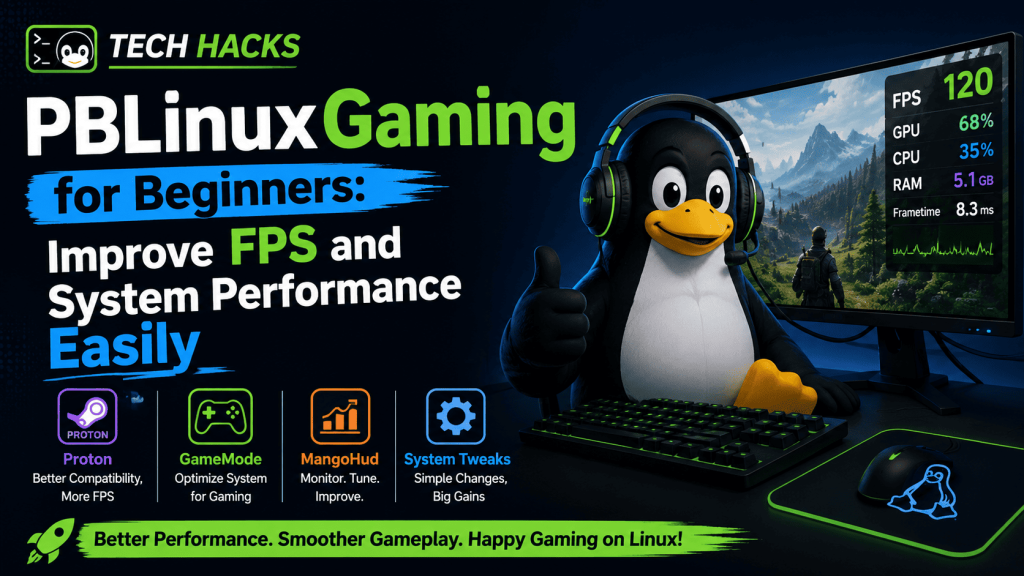
MangoHud is a Vulkan and OpenGL overlay that shows FPS, temperatures, CPU load, GPU load, and more. It is one of the most useful Linux gaming tools for beginners because it turns performance problems into visible facts. Instead of guessing, you can see whether the CPU is saturated, the GPU is maxed out, or the frame time is unstable.
That matters because not every FPS problem has the same cause. If the GPU is already close to full load, lowering heavy graphics effects can help. If the CPU is the bottleneck, then lowering resolution may not fix much. MangoHud gives you the clues you need before you waste time changing settings at random.
Beginners should keep this rule in mind. Measure first, tune second. A visible overlay is one of the most reliable ways to understand performance on Linux, especially when a game behaves differently under Proton than it does on Windows.
Try Gamescope When Fullscreen Behavior Feels Heavy
Gamescope is Valve’s micro-compositor. Its project description says it handles an embedded session use case with fewer extra copies and lower latency. In simple terms, it can help certain setups feel cleaner and more responsive, especially when fullscreen handling or compositing is part of the problem.
This is not a magic fix for every game. Some systems will benefit more than others. The point is to use it when a game feels like it is fighting the desktop environment, not when everything already runs well. On Linux, that distinction matters because the desktop, compositor, display server, and game all share system resources. A lighter presentation path can sometimes reduce input delay or visual roughness.
For PBLinuxGaming beginners, the right way to think about Gamescope is as a targeted tool. Use it when you need a cleaner game session, not as a blanket replacement for every other setting. That keeps troubleshooting simple and avoids adding extra complexity too early.
Lower the Most Expensive Graphics Settings First
When FPS is low, do not change everything at once. Start with the settings that usually cost the most performance. Shadows, reflections, volumetric effects, anti-aliasing, and resolution scaling are common places to begin. One change at a time makes it easier to see which setting actually helped. This is an inference from how performance tools like MangoHud and compatibility layers like Proton are used in practice, because the real goal is to identify the bottleneck before making broad changes.
If the game still looks good after a small reduction, keep that setting. If the FPS does not improve much, move to the next expensive option. This method is better than dropping every visual setting at once because it preserves image quality where possible. It also teaches beginners which settings matter most on their own system.
Resolution is another important choice. Lowering it can help a lot when the GPU is the limit. If the CPU is already the bottleneck, the gain may be smaller. That is why a monitor overlay is so useful. It shows whether the hardware is struggling with pixels, simulation, or both.
Keep Drivers, Vulkan Support, and System Packages Current
Linux gaming works best when the full graphics stack is healthy. That includes the GPU driver, the Vulkan path, and the packages that support Proton-based games. Steam’s own Proton and SteamOS pages show how central this stack has become to Linux gaming.
For beginners, the practical rule is simple. Do not leave graphics support stale for too long. Update your system with normal package maintenance, and pay attention to driver-related updates from your distribution. If a game used to stutter or fail to launch, a newer driver or package set may fix it without any other change. That is especially important on Linux because compatibility and performance both depend on how well the software layers work together.
This is also where Linux gaming has improved a lot. ProtonDB exists because community reports now matter enough to track game behavior at scale, and Steam continues to invest in Proton for Linux users. For beginners, that means the platform is no longer experimental in the way it once was. It is a real gaming setup, but it still rewards regular maintenance.
Reduce Background Load Before You Blame the Game
A game can only use what the system leaves free. Browser tabs, launchers, cloud sync tools, and heavy desktop effects can all add noise to a gaming session. On Linux, small background loads can matter more than people expect, especially on lower-power systems or older laptops. The cleanest approach is to close what you do not need before launching a game. That keeps CPU time, memory, and storage activity focused on the game itself. This is a practical inference that follows from how GameMode temporarily optimizes the host system and how MangoHud exposes CPU and GPU load during play.
Storage health matters too. If the game is installed on a slow or heavily used drive, loading times and texture streaming can suffer. Keeping free space available and avoiding unnecessary disk activity helps reduce stalls. The idea is simple. A clean system behaves more predictably, and predictable systems are easier to optimize.
Use One Change at a Time and Test the Result
The best beginners’ method is a step-by-step routine. Start with Proton compatibility. Then try GameMode. Then watch the game with MangoHud. After that, adjust only the settings that the overlay suggests are causing the real limit. This keeps the process calm and measurable.
This approach is better than random tweaking because Linux gaming performance depends on layers. The game, Proton, the graphics driver, the compositor, and system services all play a part. When you test one change at a time, you learn which layer needs attention and which one is already fine. That is the most reliable way for beginners to improve FPS and system performance without making the setup harder to manage.